
Prerequisites
The Shift Magento (Adobe Commerce) plugin allows you to offer customers Shift payments in your Adobe Commerce (Magento) store. You need to register with Shift to enable the plugin for your eCommerce platform.
Currency
Shift supports Australian Dollar only.
Installation
Follow the instructions in How to Install Magento 2 Extensions.
Configuration
Once the Shift plugin is installed, you now start configuring the settings.
Navigate to Magento Admin Dashboard > Stores > Configuration > Sales > Payment Methods.
Look for “Shift” in the list of available Payment Methods.
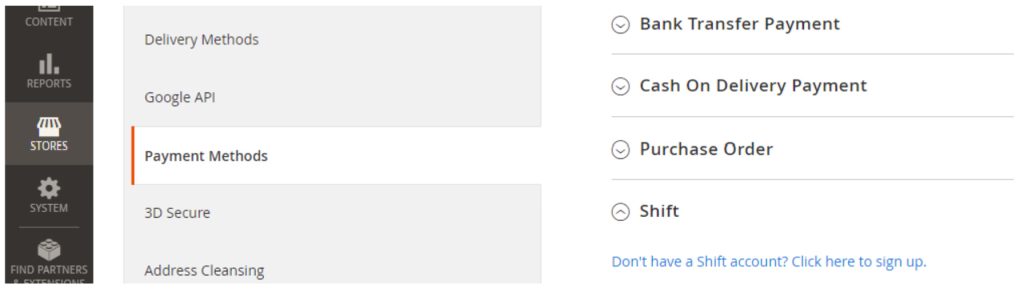
In the Shift plugin settings page, you can configure the values that are required to integrate with Shift.
NameDescriptionEnable/Disable
Enables or disables the plugin on the merchant store.
API Key
The API Key that will be used to call the Shift API.
This will be generated by Shift and will be provided by your Shift Account Manager or Partnership Manager.
Merchant ABN
The Australian Business Number of the merchant.
Test Mode
Enables whether the plugin will be used for testing or production environment.
Checkout Method
Controls whether the plugin will use the widget or redirect for the checkout confirmation experience.
Product Code
The Shift Product Code to be used for checkouts. The following products are predefined in the plugin:
- Equipment Line
- Shift Trade
Webhook Secret
The secret that will be used for verifying the webhook event signature.
- The plugin will expose the webhook.
- This will be generated by Shift.
- See below ‘How to Determine the Shift Payment Plugin Webhook URL’ for more info
Establishment fee (added to loan amount)
Use this value for tolerance validation in seconds. Default to 180 seconds.
Send Exception Logs to Shift
Sends exception logs to Shift email automatically when an error has occurred with the payment.
How to determine the Webhook URL of the Shift Plugin
- To determine the webhook URL of the plugin, you need to know the base store URL. You can find the base URL by navigating to Magento Admin Dashboard > Stores > Configuration > General > Web > Base URLs.
- Once you know the base store URL, you can append “/V1/shift-callback/confirm”.
Examples:Store URLWebhook URLhttps://shift-wp-sandbox.azurewebsites.net
https://shift-wp-sandbox.azurewebsites.net/V1/shift-callback/confirm
https://abc.com/my-store
https://abc.com/my-store/V1/shift-callback/confirm
Configuration Credentials
Don’t have your configuration details yet? Please contact your Shift Account Manager or Partnership Manager. Shift will require your Test environment URL and the details of the individuals (name, email, mobile phone) who will be accessing both Test and Production environments.Shift will then provide the following Test credentials and assistance with running test scenarios:
- Test API keys,
- Test login instructions.
Go live
Once tests have been run in Test mode to trial the API keys and the test results are successful, then Shift will provide the Live configuration credentials.
Switch to Live mode.
Start offering Shift to your customers.
The Shift Magento (Adobe Commerce) plugin allows you to offer customers Shift payments in your Adobe Commerce (Magento) store. You need to register with Shift to enable the plugin for your eCommerce platform.