
How long do I have to repay?
This depends on the terms that apply to your invoice.
- If your supplier set the terms through Shift Trade, those terms are shown when you are asked to approve the invoice.
- If you set your own terms, you chose your preferred repayment option when you uploaded the invoice. The maximum term is weekly instalments over 20 weeks.
You may be able to extend repayment on an invoice if you want more time.
How do repayments work?
Repayments are processed via direct debit from your nominated business bank account according to the terms that apply to each invoice. You will receive an SMS reminder two days before each repayment is due, confirming the amount. You can view your full repayment schedule at any time by logging into your Trade Account.
What happens if the direct debit fails?
A $25 dishonour fee applies and Shift will attempt to process the direct debit again the following day. If the second attempt also fails, a Shift team member will contact you to arrange a new payment date. If you are experiencing financial hardship or difficulty making a catch-up payment, contact our team and we will work with you to explore your options.
Extend repayment for an invoice
Extend the repayment terms on an existing invoice to better suit your cash flow. You can extend an invoice regardless of whether your supplier originally set the payment terms or you set your own. Your supplier has already been paid – this simply changes your repayment to Shift.
Some invoices are not eligible for extension, including invoices already set to the maximum 20-week instalment option. Any additional transaction fee for new repayment terms is shown clearly before you confirm.
Read more
Log in to your Trade Account.
Click the Invoices tab at the top of your dashboard.
Find the invoice you want to extend, then click Extend next to it.
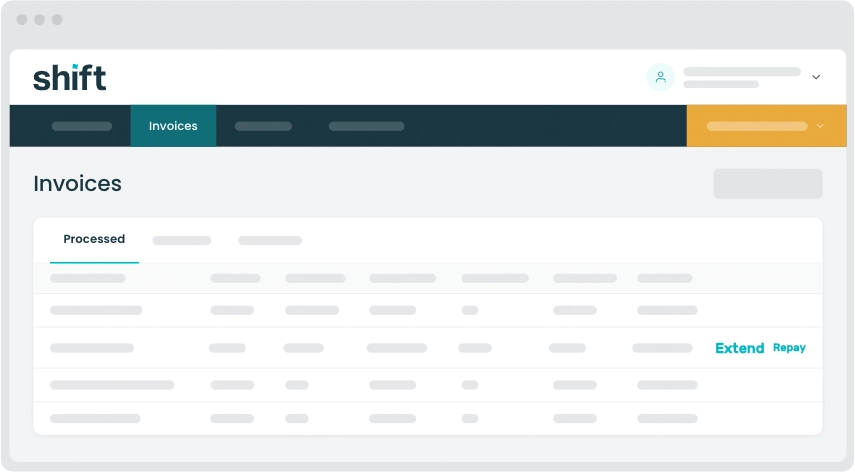
Choose the new repayment option you would like to apply.
Review the transaction fee for the new option, then click Extend to confirm.
Repay an invoice early
Repay an invoice before its due date to manage your Trade Account balance and free up funds to pay other invoices.
Read more
Log in to your Trade Account.
Click the Invoices tab at the top of your dashboard.
Find the invoice you want to repay early, then click Repay next to it.
Click Make repayment to confirm.
Note: Allow 1–3 business days for the direct debit to be processed and for your balance to update.
Repay your balance in full
Repay your Trade Account balance in full at any time to free up funds to pay other invoices.
Read more
Log in to your Trade Account.
From your dashboard, click Pay balance.
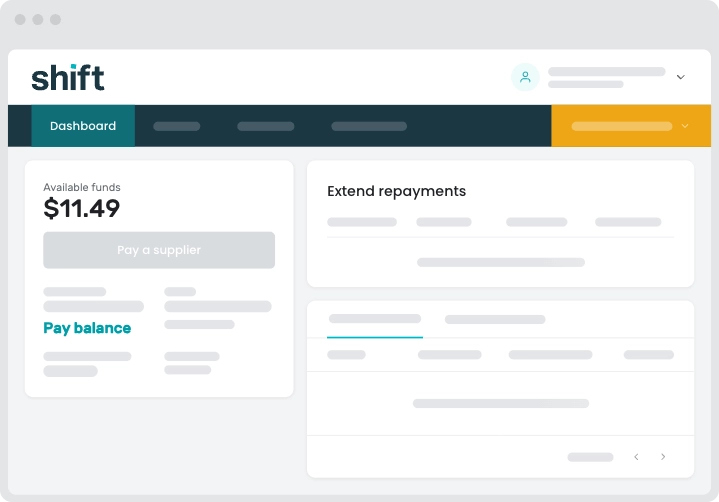
Review the payment amount, then click Pay balance to confirm.
Note: Allow 1–3 business days for the repayment to be processed and for your balance to update.
Need assistance?
Our friendly team is here to assist you. Please contact us on 1300 249 649 from Monday to Friday (8:00am – 7:00pm AET) and Saturday (9:00am – 2:00pm AET) or email trade@shift.com.au.